lifeOS uses warm backgrounds, white cards, and black buttons to make automation feel like everyday tools. Its key is making goals, execution paths, service permissions, and results visible in separate layers. A personal AI automation interface needs to show how tasks will happen before it can earn trust.
Creation places goals and conditions together
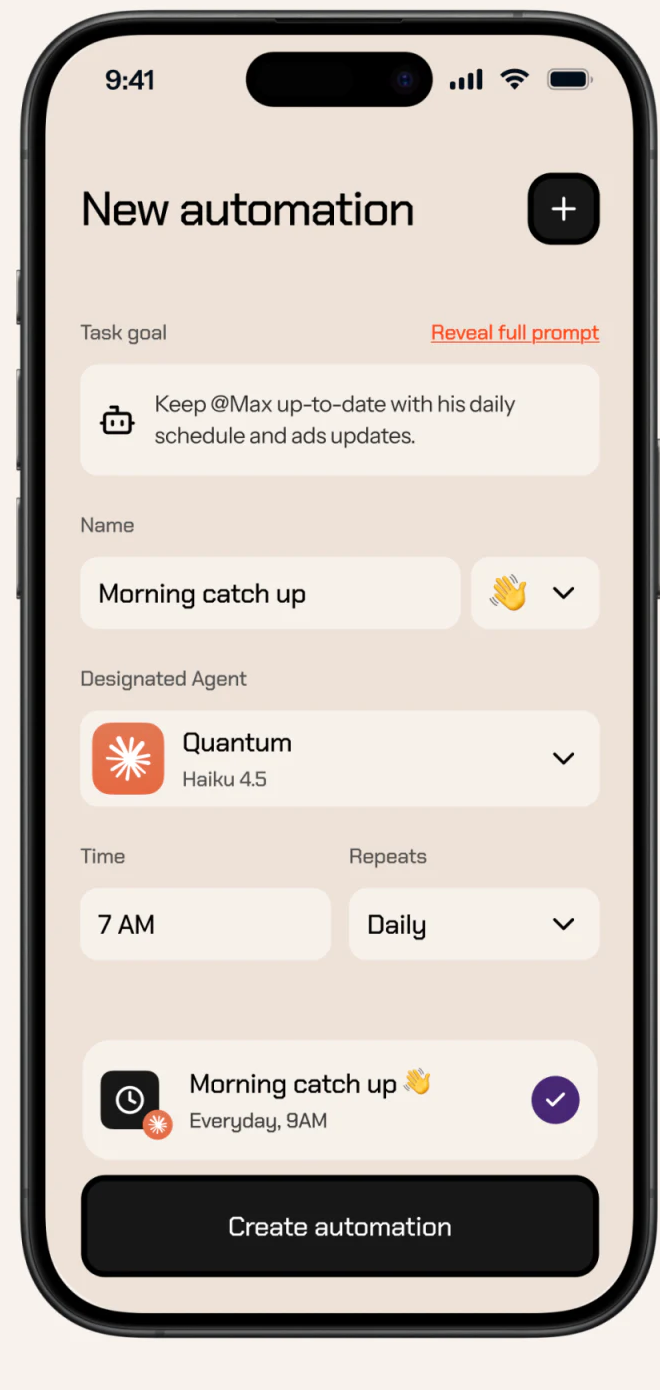
New automation starts with Task goal, then name, Agent, time, and repetition. The goal is a full sentence beside Reveal full prompt; an emoji in the name distinguishes similar tasks. The bottom button follows a sequence from what to do into how to execute it.
This offers more checkable information than a blank chat field. Goal sentences express intent; form fields express constraints. If a recipient can be identified in the goal, the actual account should be confirmed rather than retaining text that merely resembles a name.
The time field says 7 AM while the summary says Everyday, 9 AM. Such example differences need alignment in the final interface. JVDS Design Studio recommends generating summaries from actual fields and adding time zones so the pre-creation view matches execution conditions.
Nodes explain how a task passes between steps
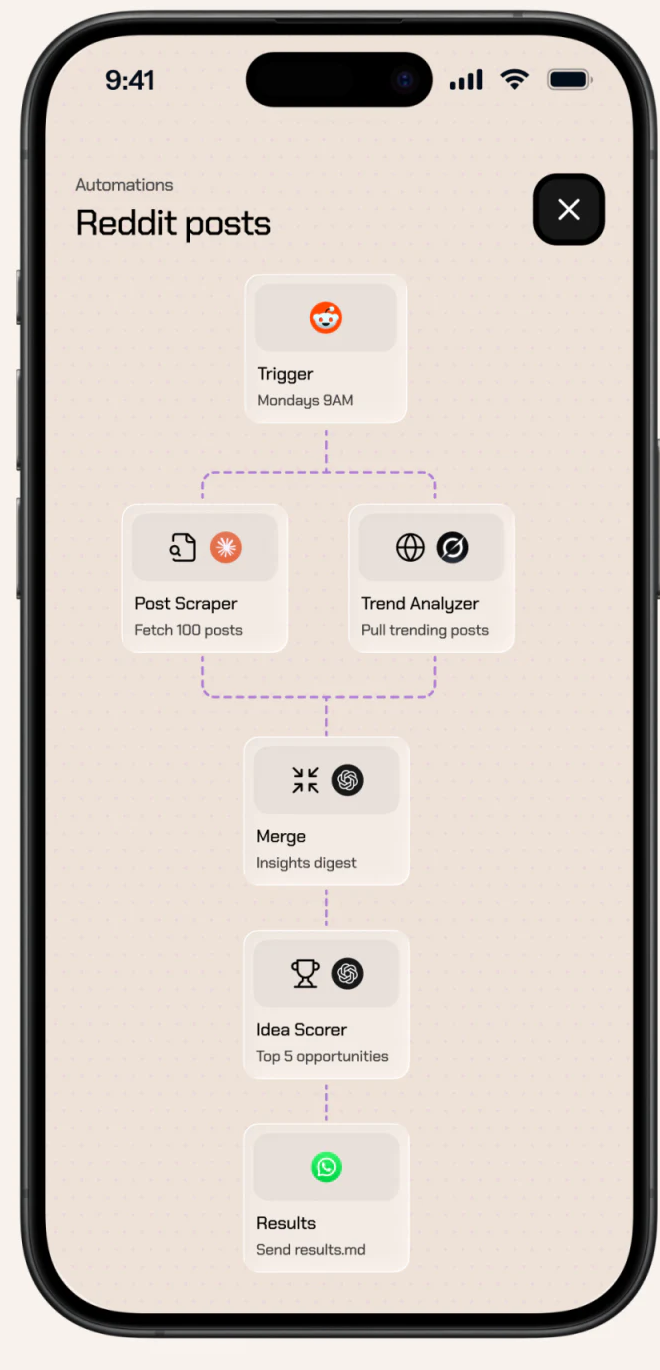
A weekly trigger branches into fetching posts and analyzing trends, then converges into insights, opportunity scoring, and sending results. Purple dashed connections link white nodes with icons, names, and short descriptions. Vertical order reads as execution order rather than a random feature list.
Fetch 100 posts and Top 5 opportunities are task-setting examples, making input and output quantities visible. Actual runs still need pending, processing, completed, and failed states; connections do not prove execution.
Service icons and a filename explain sending at the end, but the recipient is unclear. If earlier steps can be independently adjusted, output destination should also be checkable rather than hiding the essential final step.
Integrations state permissions beside services
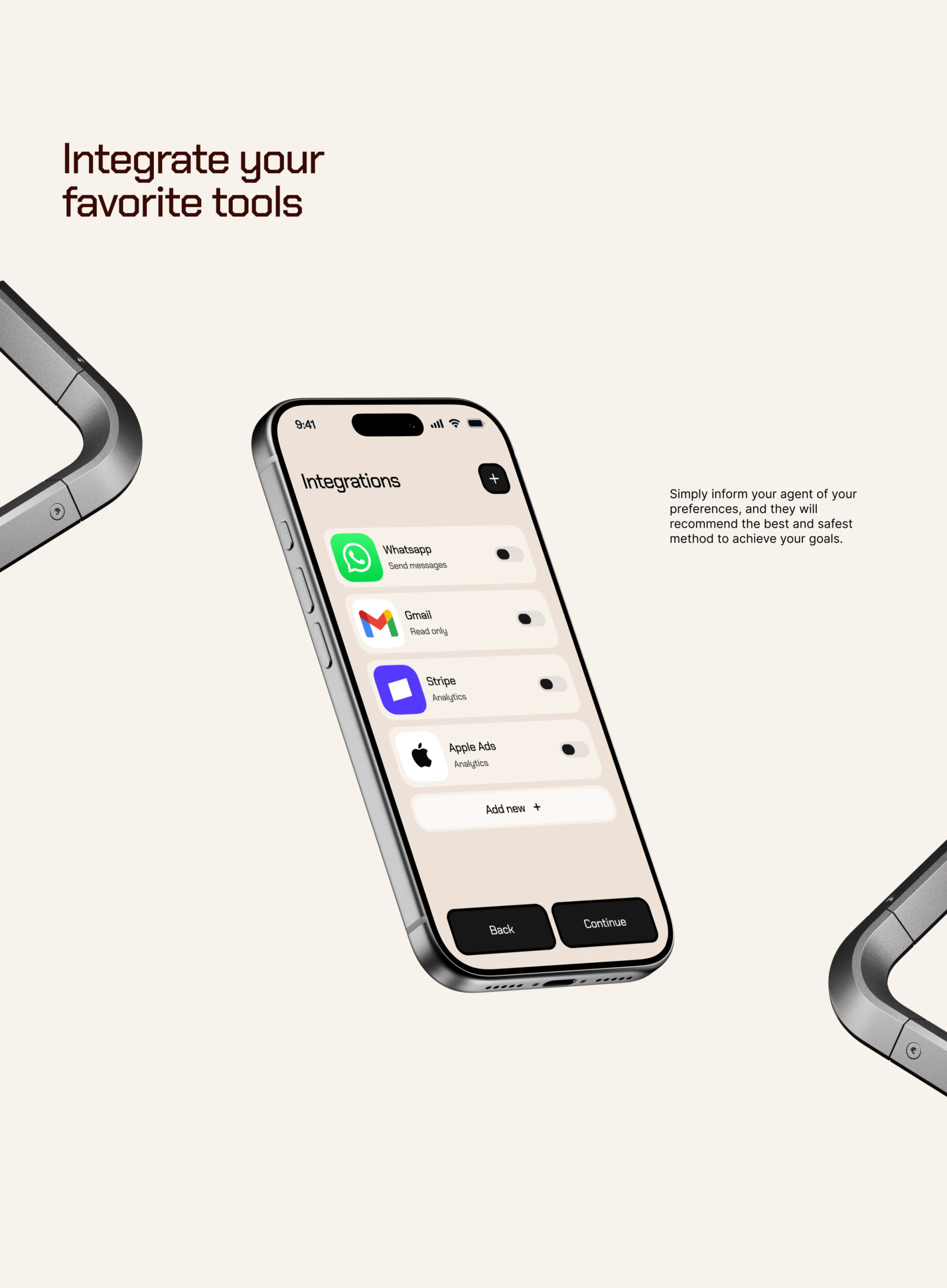
WhatsApp, Gmail, Stripe, and Apple Ads appear in rows with recognizable icons and Send messages, Read Only, Analytics, and other permission phrases. Scope beside names is easier to compare than explanations on another settings page.
Switches sit on the right, with Add new, Back, and Continue below. A switch mainly indicates enablement; connected accounts, expired authorization, and unavailable services are separate states. Products with multiple accounts should distinguish these from the switch so enabling a row does not imply successful connection.
Results continue through files, audio, and messages
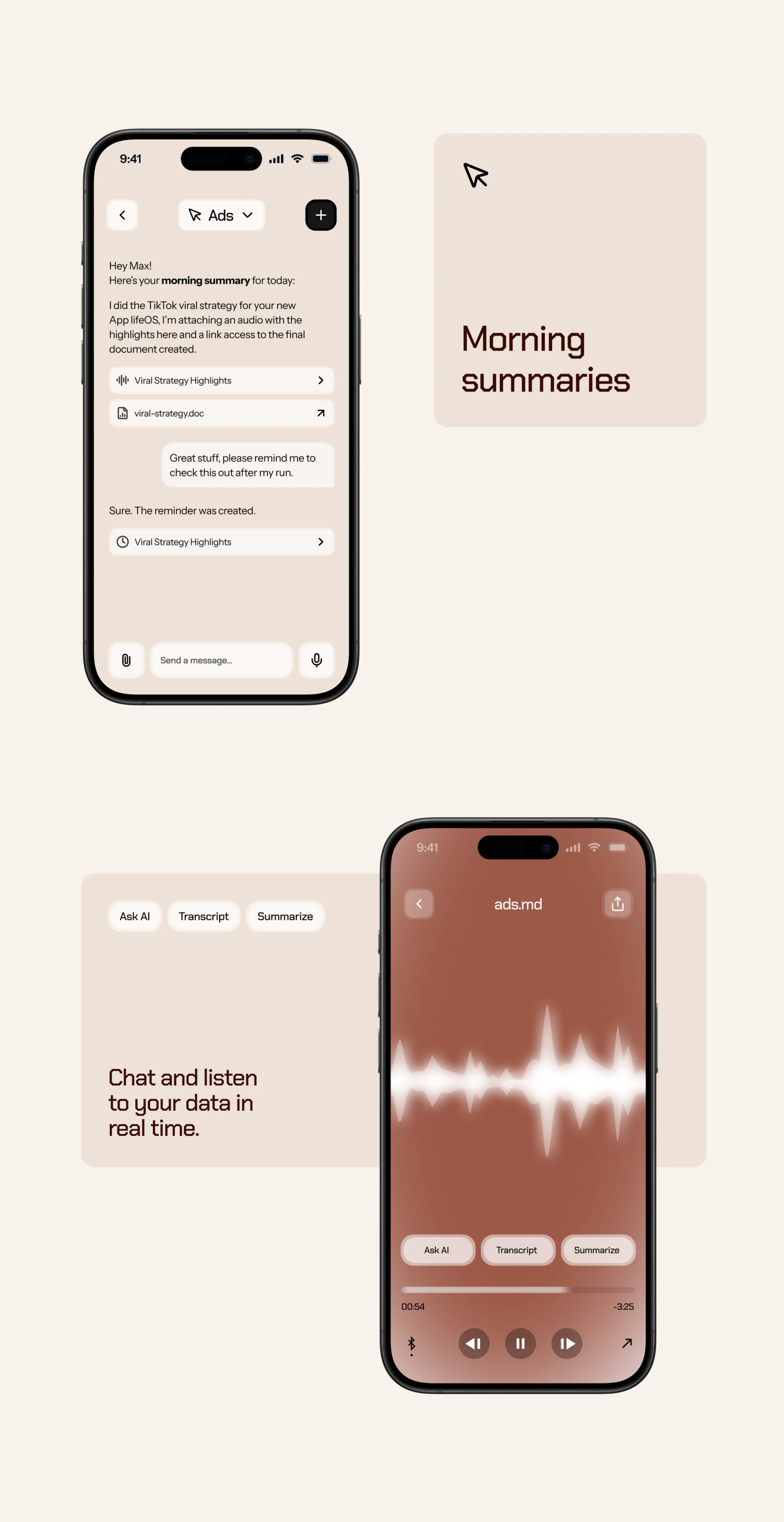
Results place summaries, audio bars, and documents in a conversation. The audio player has a waveform, progress, Ask AI, Transcript, and Summarize. Outputs extend beyond one message: readers can listen, open documents, or ask further questions, with recognizable forms.
The conversation contains a request to review after a run and a created-reminder reply. If time or trigger remains unclear, confirmation should complete it so the reminder’s timing is known. The useful idea is retaining readable objects from creation to result; automatic actions next need explicit conditions and states.
Make automation tasks checkable
Personal assistants, workflows, and AI tools can separate goals, execution conditions, permissions, and outputs, then connect them through summaries and states.
JVDS Design Studio provides UI/UX design, website design, and development services for task configuration, workflow editing, and result feedback interfaces.
 Link copied