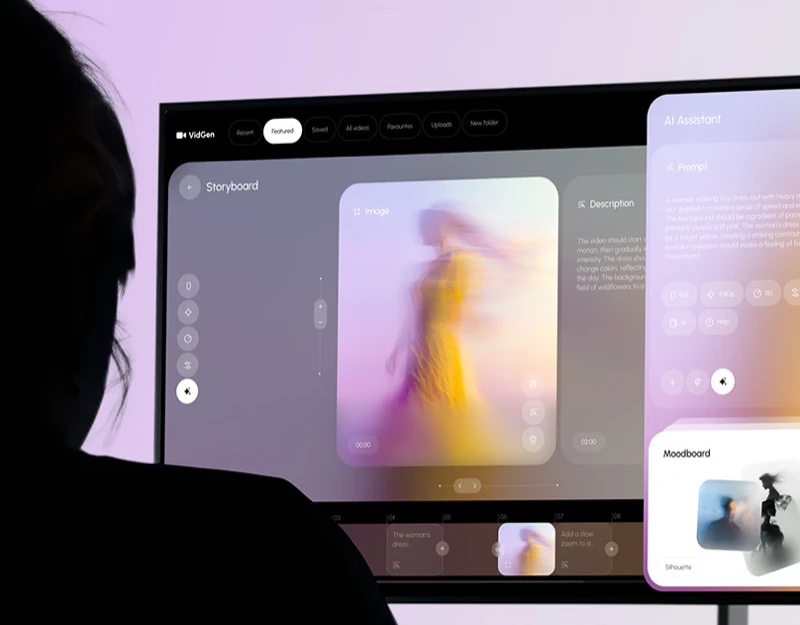
VidGen presents images, shot descriptions, generation prompts, and references in one workspace. Video generation tool design needs room for creative expression while specifying which shot these inputs affect. A stable editing object makes relationships among text, parameters, and generated results easier to understand.
Side-by-side desktop panels make inputs comparable
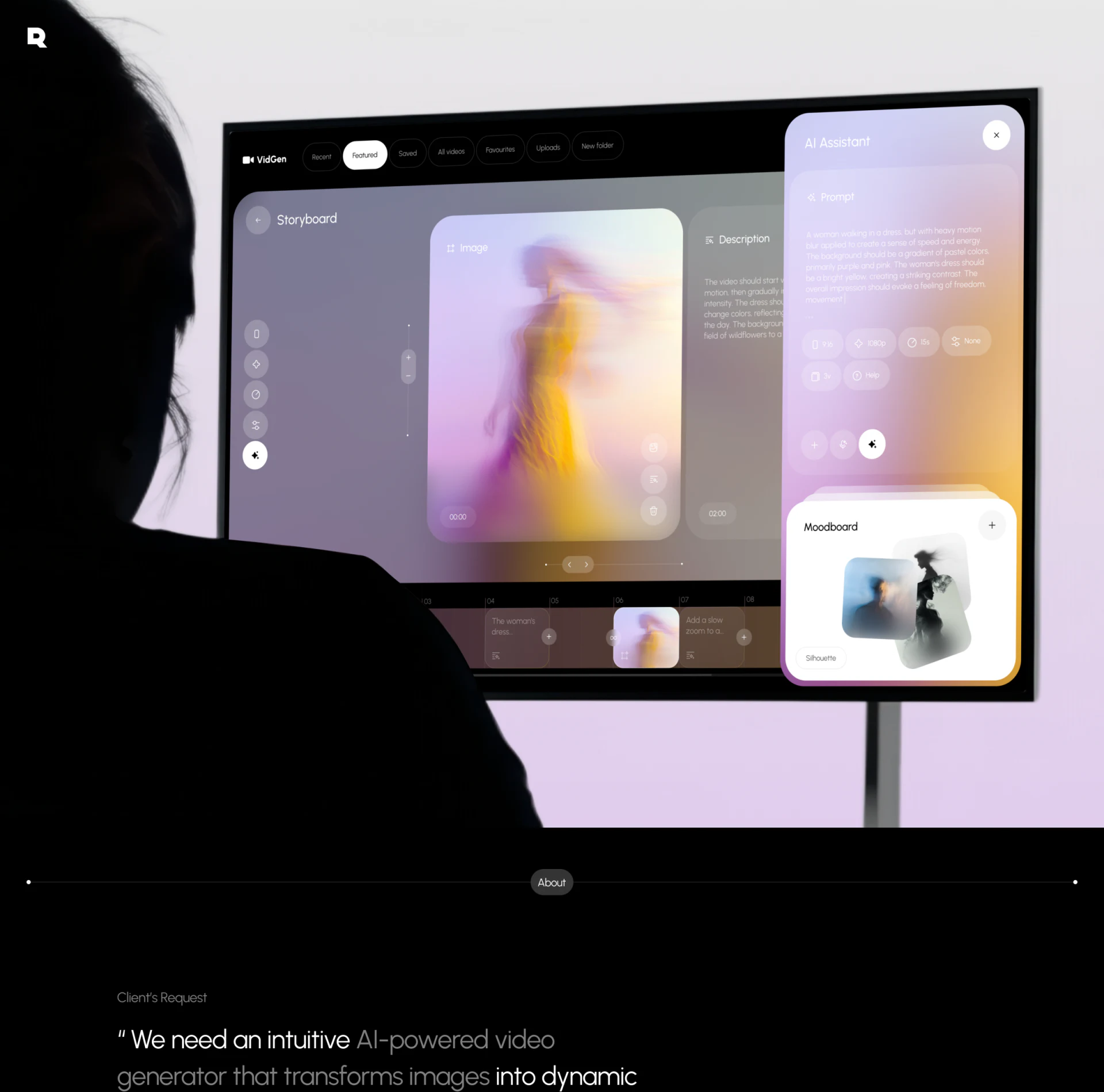
Image in the center shows yellow clothing with motion blur, Description explains changes in movement, and AI Assistant on the right supplies Prompt, aspect ratio, resolution, duration, and Moodboard. The bottom timeline arranges image and text segments, while the left toolbar groups common editing entries. Preview, narrative, and generation conditions sit together for revision while viewing.
Description addresses how movement unfolds, while Prompt emphasizes clothing, color, and blur. Both discuss one visual passage with different responsibilities. JVDS prefers shared shot numbers and version indicators, clear unapplied changes, and results linked back to their conditions. Assistant-text updates should also expose which existing contents they affect.
Moodboard has a separate area and plus, treating references as more than input attachments. Clarifying whether images affect the current shot or the entire project style gives creators a firmer basis for adding or removing them.
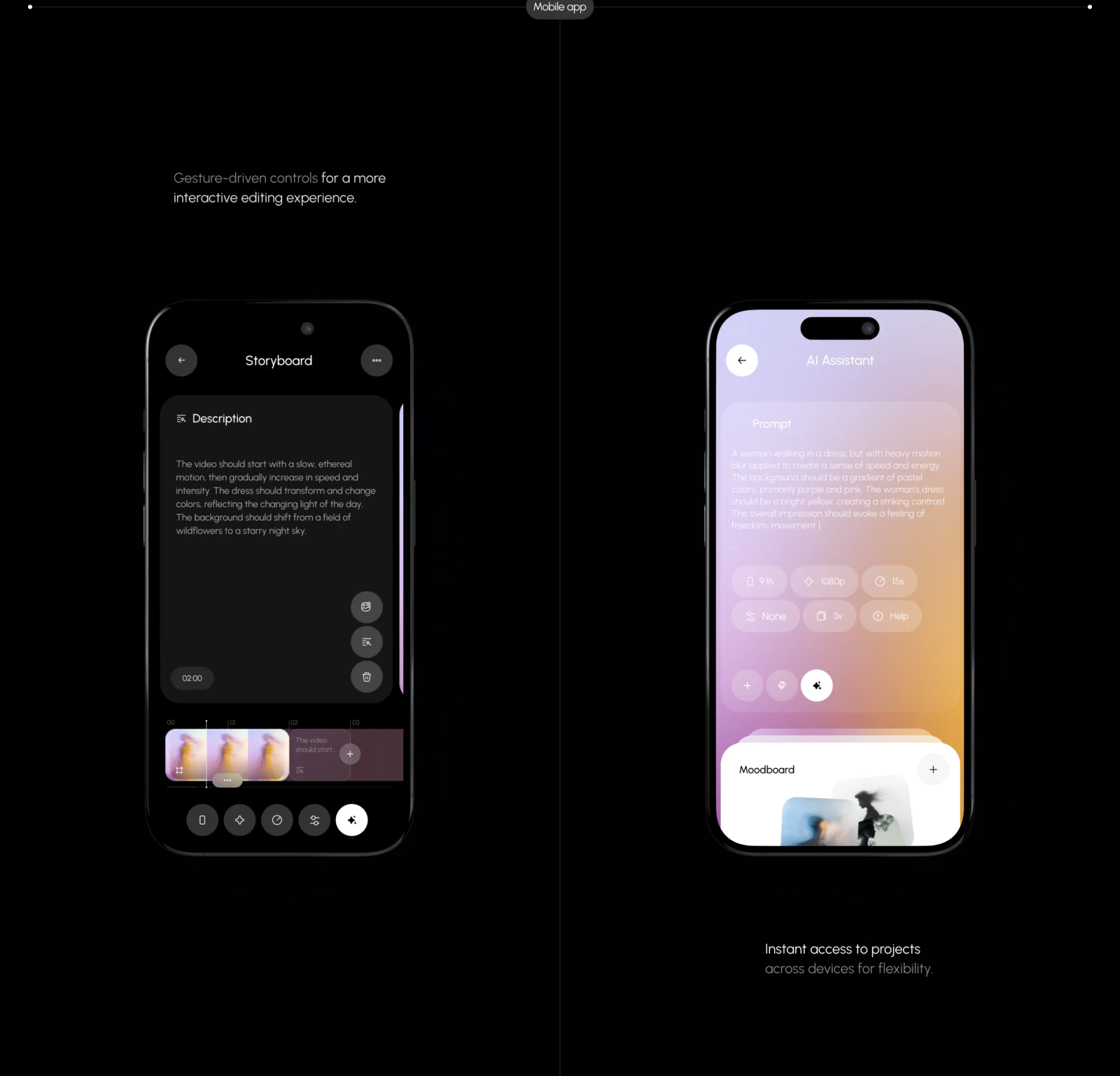
Mobile separates panels while retaining editing context
Description occupies a large mobile card with a horizontal timeline and tools below. Another screen gives AI Assistant the main area while retaining Prompt, parameters, and Moodboard. Long text gets a dedicated reading space; the timeline connects current editing to the sequence instead of simply copying three desktop columns.
The current shot can leave view when switching to the assistant. Retaining project and segment identifiers above, then restoring selection and drafts on return, would help. The circular tools below use only icons; a way to view their names would help first-time users understand actions.
The description’s 02:00 and generation setting’s 15s need separate explanations: timeline position, segment length, or output duration. They can differ if labels explain them. Aspect ratio and resolution also need distinct meanings so a parameter change is not mistaken for overwriting an entire passage.
One production task should connect the introduction to getting started
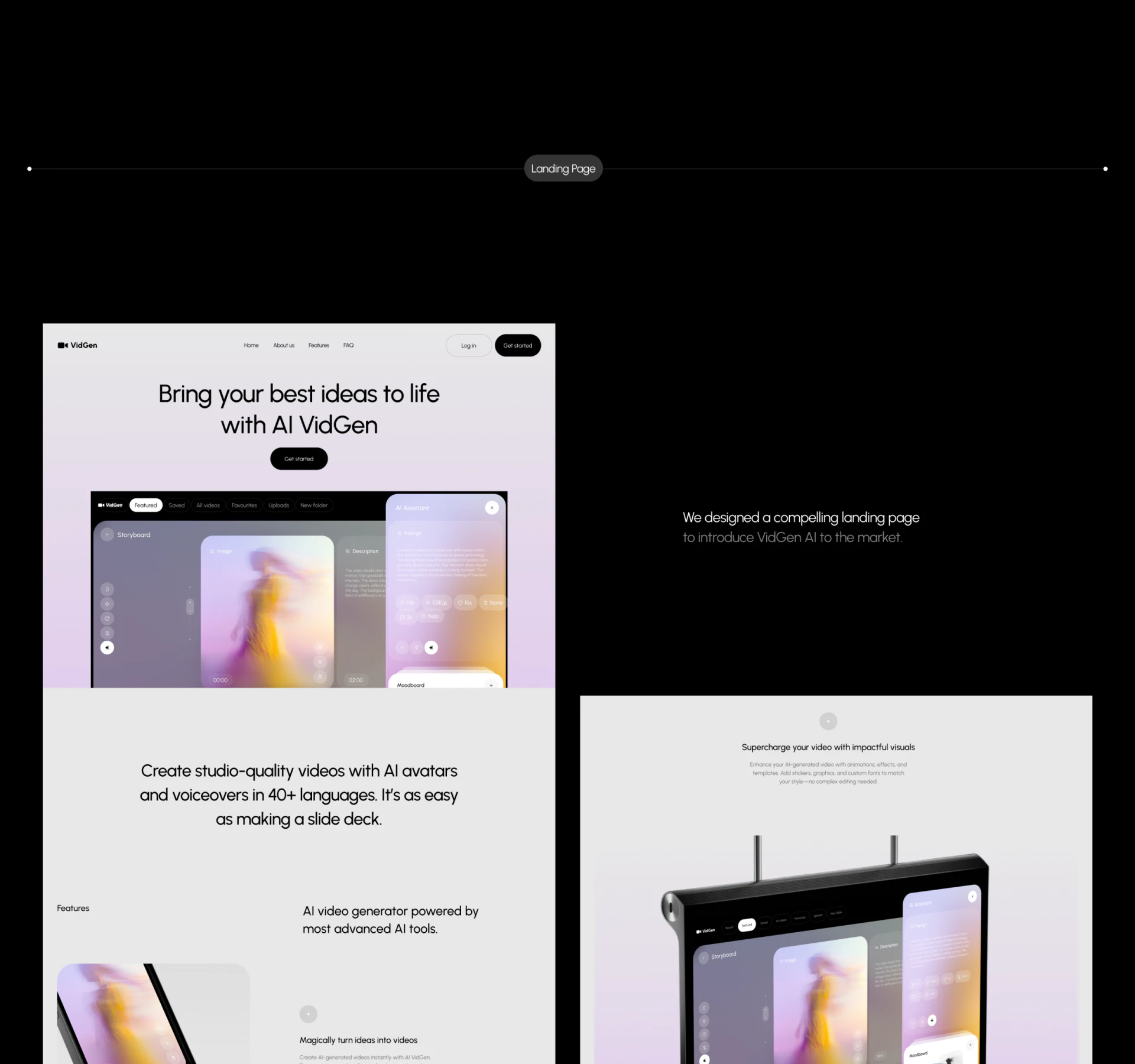
The introduction shows the workspace directly beneath the heading and Get started, letting visitors see the editing form first. It then shifts into AI characters, voiceover, and multilingual copy, followed by workspace and image demonstrations. Purple-orange gradients and light backgrounds retain the visual identity.
The workspace example emphasizes shot editing, while feature copy turns toward characters and voiceover. One defined production example could connect them: input images or text, adjust conditions, and inspect candidate results. This helps visitors understand their first task. Waiting during generation, retaining drafts after failure, and comparing results also need explanation in the actual flow.
The useful principle is dividing creative inputs into panels with distinct responsibilities and giving desktop and mobile different reading spaces. Panels can move, but the current shot, parameter version, and result ownership should stay consistent.
Connect generation to a repeatable editing workflow
If your video or AI creative tool manages storyboards, prompts, parameters, and references, clarify editing scope and version relationships before organizing desktop and mobile panels.
JVDS Design Studio provides UI/UX design, website design, and development services for creative workspaces, generation flows, and product introduction pages.
 Link copied