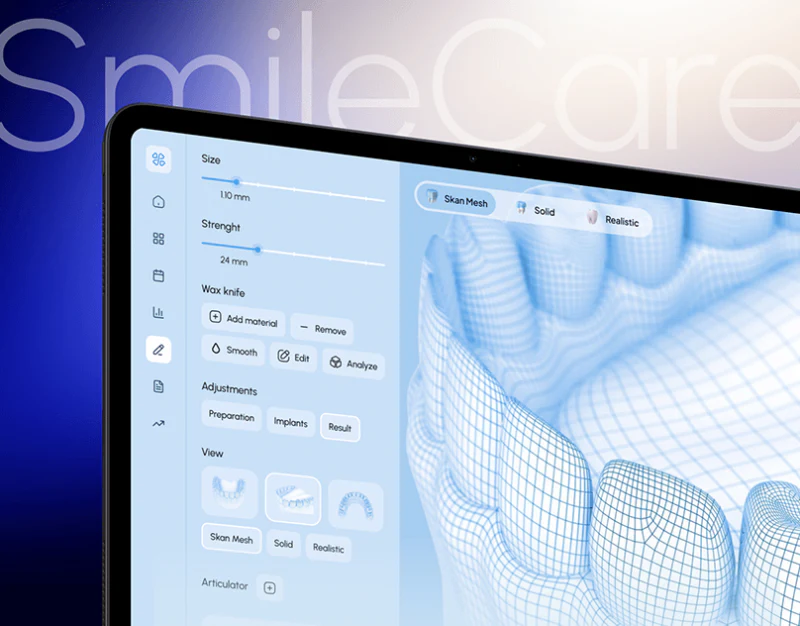
This dental workspace uses a pale-blue canvas for a large mesh model, white tools on the left, and business summaries in another set of pages. Model editing and order overview share a fresh style but different focuses: the current object in one, workload in the other.
Key takeaways
- Parameters, tools, and views occupy distinct areas around the model, making local actions clear.
- Task identity should connect business summaries and model editing, with progress and save status explained separately.
Local tools sit beside the model, with parameters in their own area
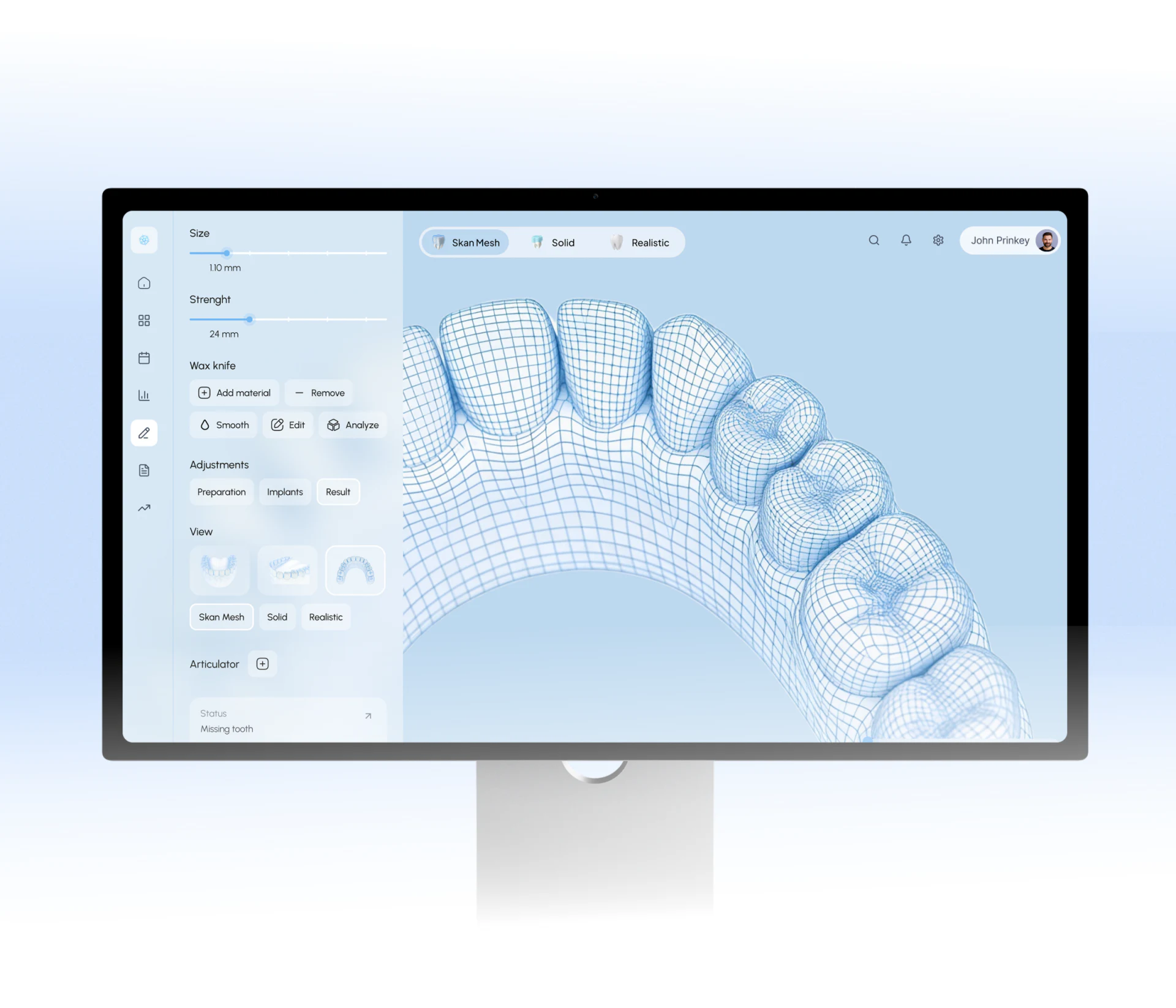
The dental model takes the largest central area. Size and Strength sliders sit on the left before Add material, Remove, Smooth, and other tools. Icon navigation lies farther left, with mesh, solid, and realistic views above. Global entries, local tools, and display modes have separate places.
A light boundary separates white tools from the blue canvas, while the mesh remains clear. Parameter labels and values stay close, avoiding the need to recall a slider’s purpose from another explanation. This is useful for professional tools used to adjust one object repeatedly.
JVDS would check whether tools are single actions or persistent modes, and how selection, exit, and pointer cues appear. Repeated view entries should control one state, with the current tool clear after orientation changes. This evaluates visible divisions, not production precision from parameters.
White overview cards rise from the model background
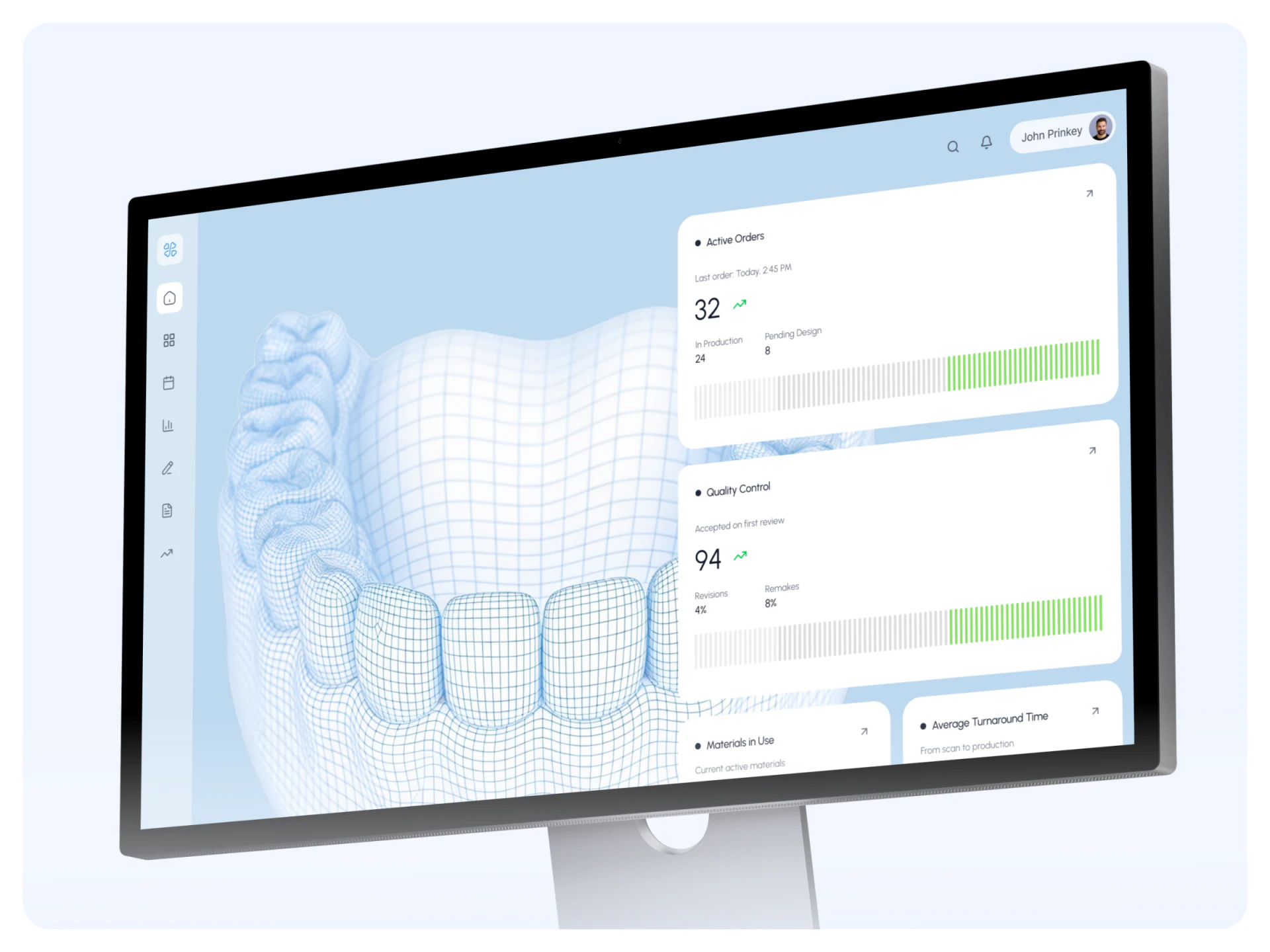
Another page group overlays Active Orders, Quality Control, and other white cards beside a model background, with numbers, short labels, and green-gray strips. The model supplies the theme and cards summarize work at a different density.
Order counts and quality summaries suit overview tasks but cannot be assumed to concern the model behind them. Editing should identify the current object through task identity and version, not a visually similar model alone.
Separating business dashboard and canvas leaves space for tools and models while giving summaries more complete information. Task numbers and return positions should connect them. The screenshot is a presentation page; the actual route from pending task to model still needs checking.
Progress and tools do not share one completion state
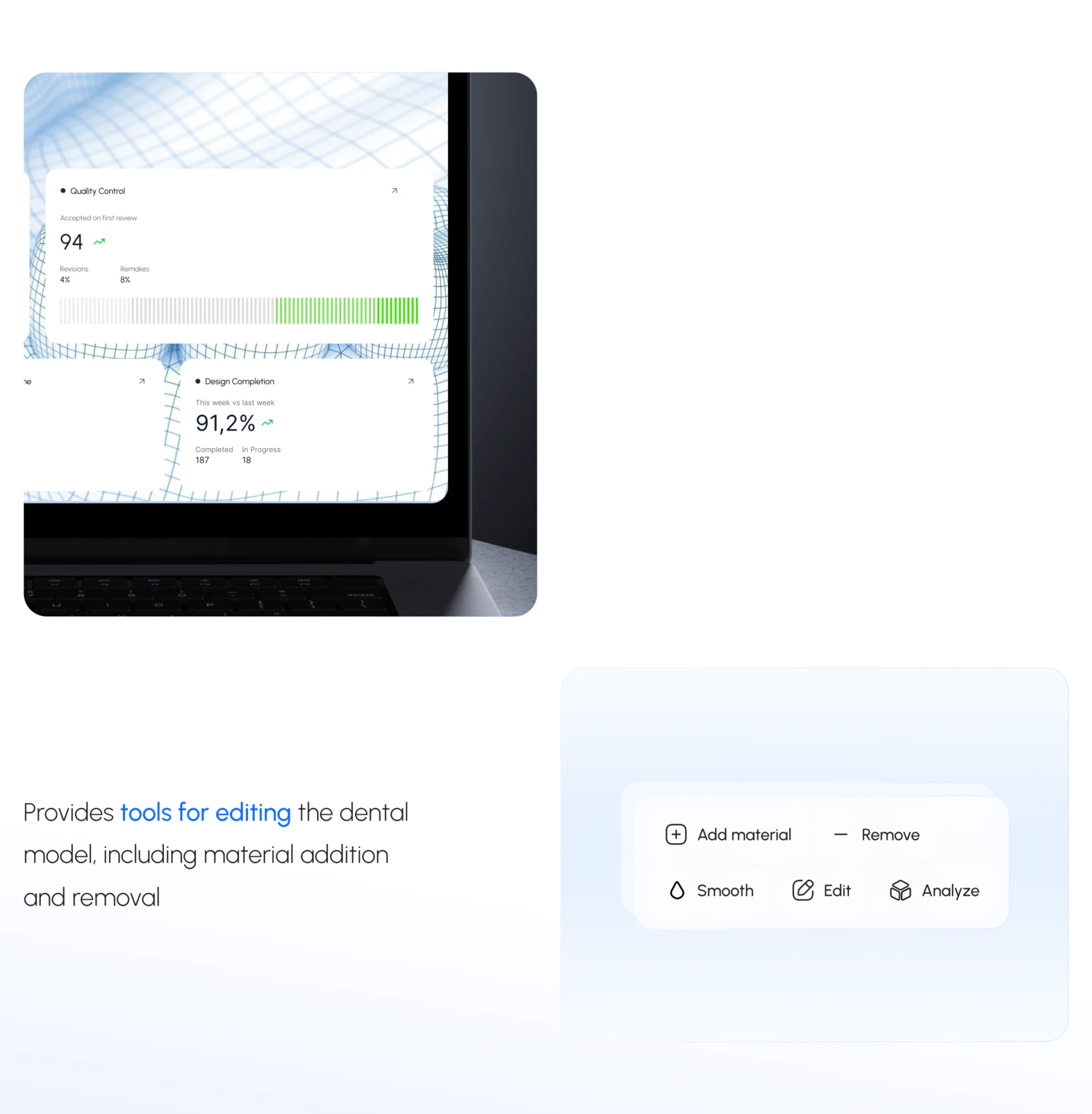
Design Completion uses a large percentage followed by Completed and In Progress counts. Editing tools are enlarged separately, with Add material, Remove, and other names beside linear icons. Separate component presentation supports inspecting fields and icons without implying one shared page position.
Progress needs a reporting scope, and quality figures need units and periods. Green arrows and stripes help scanning but cannot replace denominators, definitions, and time. Pictured numbers are examples, not actual quality performance.
JVDS focuses on the distinction between business progress and model saving. A completed task does not mean current edits are saved. Leaving the canvas, returning to a list, or encountering version conflicts needs specific states. The blue style is clear; tools and figures should next be checked against the correct object.
Frequently asked questions
Should a professional editor always show every business statistic?
Arrange content around the task. Editing needs model, tools, and save status; overview statistics can sit at another level with a return cue.
Design review checklist
- Confirm persistent tool modes, selection, and exit methods.
- Check whether task identity, version, and save status are visible together.
Organize work in professional tools
If your professional software combines a model canvas, business dashboard, and task list, bring tools and states to discuss the UI/UX structure.
JVDS Design Studio provides UI/UX design, website design, and development services to help organize page content, interface structure, and implementation needs.
 Link copied